
DVR_Dan
New member
- Joined
- Apr 3, 2015
- Messages
- 52
XCIPTV (version 4) is one of the fastest IPTV apps for Android TV and Firestick, with noticeably quick channel switching and excellent 4K HDR playback. This guide covers installation, setup, and the most reported problems.
XCIPTV is not on the Amazon or Google Play stores and requires sideloading via APK. Download the APK from the official XCIPTV website using the Downloader app on your device.
On Firestick: Settings → My Fire TV → Developer Options → Apps from Unknown Sources → enable. Then open Downloader and install.
On Android TV box: Settings → Security → Unknown Sources → enable. Open Downloader and install.
Launch XCIPTV and tap the + Add Playlist button:
Xtream Codes: Select "Xtream Codes API". Enter a playlist name, your server URL, username, and password. Tap Save.
M3U: Select "M3U URL". Enter the playlist name and M3U URL. Save.
First channel load takes 1–4 minutes. XCIPTV downloads and caches the playlist locally.
In the app settings panel:
• Hardware Decoder: Enable explicitly. Critical for smooth 4K HDR playback.
• Buffer Size: Set to at least 8 MB. For 4K content on fast connections, 16 MB provides more headroom.
• Reconnect Delay: Set to 5–10 seconds for most connections.
"Invalid credentials" when you are sure the details are correct:
1. Check for spaces: Copy credentials to Notepad first and verify no leading/trailing spaces exist. Even one space invalidates the login.
2. Verify URL format: Must include http:// or https:// and the port number (e.g. :8080). Using the wrong protocol is a common cause.
3. Test in browser: Type your server URL + /player_api.php?username=X&password=Y in a browser on the same network. If you get JSON output, credentials are valid and the issue is in the app.
4. Clear cache: App Settings → Clear Cache. Restart XCIPTV and try login fresh.
If channels freeze intermittently but audio continues: hardware decode may be set to auto mode and choosing software decode for H.265 streams. Enable hardware decode explicitly.
If all channels buffer consistently: check your internet speed at peak hours (7–10pm). If speed drops below 15 Mbps sustained, ISP congestion is the cause. See our dedicated buffering troubleshooting guide.
Version 4 introduced a completely rewritten player engine. Channel switching speed improved by approximately 40% in testing. 4K HDR pass-through to TVs supporting HDR10 was also improved. If you are running XCIPTV version 3 or older, updating to version 4 is strongly recommended.
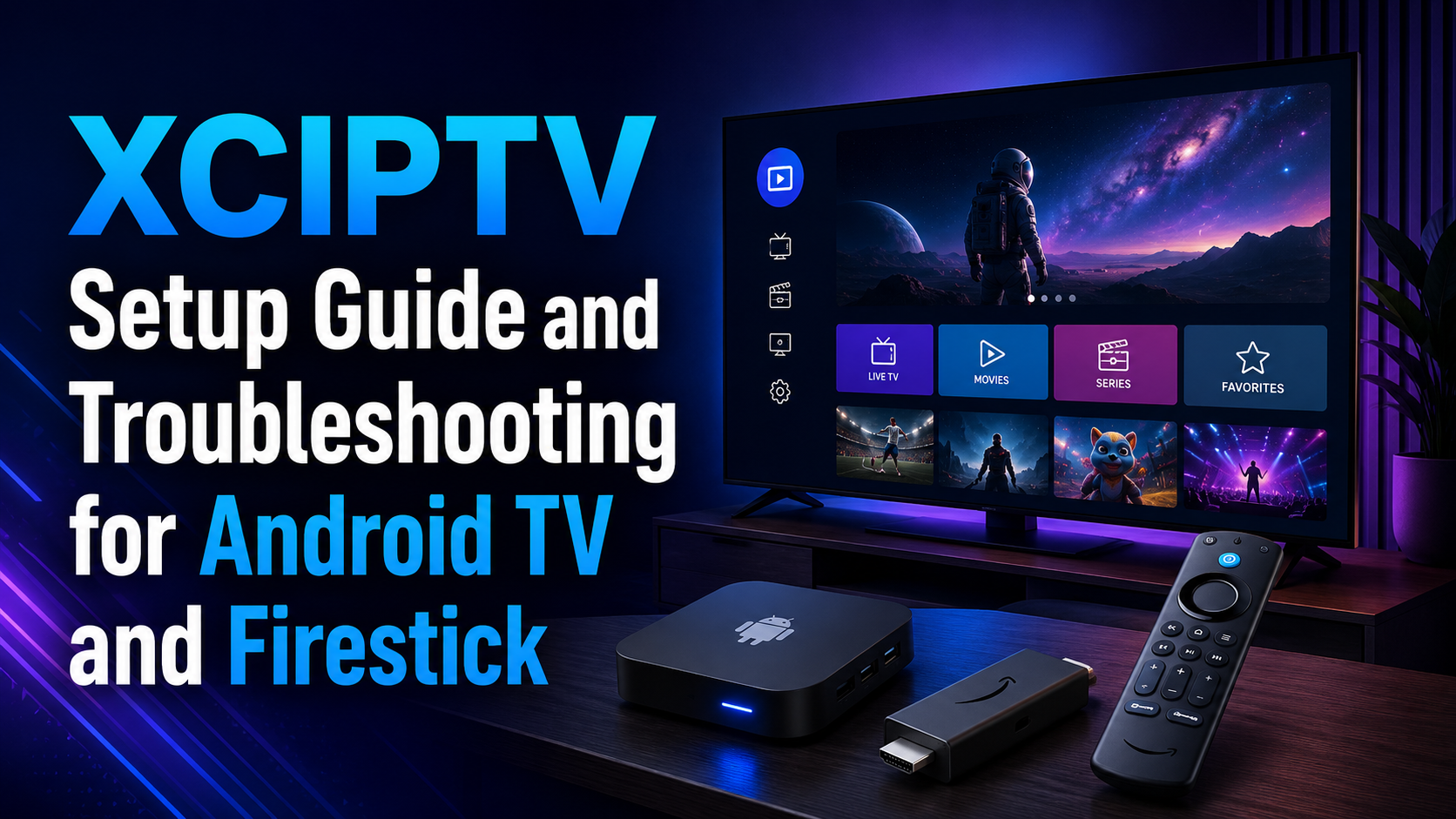
Installing XCIPTV
XCIPTV is not on the Amazon or Google Play stores and requires sideloading via APK. Download the APK from the official XCIPTV website using the Downloader app on your device.
On Firestick: Settings → My Fire TV → Developer Options → Apps from Unknown Sources → enable. Then open Downloader and install.
On Android TV box: Settings → Security → Unknown Sources → enable. Open Downloader and install.
Adding Your IPTV Service
Launch XCIPTV and tap the + Add Playlist button:
Xtream Codes: Select "Xtream Codes API". Enter a playlist name, your server URL, username, and password. Tap Save.
M3U: Select "M3U URL". Enter the playlist name and M3U URL. Save.
First channel load takes 1–4 minutes. XCIPTV downloads and caches the playlist locally.
Performance Settings
In the app settings panel:
• Hardware Decoder: Enable explicitly. Critical for smooth 4K HDR playback.
• Buffer Size: Set to at least 8 MB. For 4K content on fast connections, 16 MB provides more headroom.
• Reconnect Delay: Set to 5–10 seconds for most connections.
Troubleshooting: Login Not Recognised
"Invalid credentials" when you are sure the details are correct:
1. Check for spaces: Copy credentials to Notepad first and verify no leading/trailing spaces exist. Even one space invalidates the login.
2. Verify URL format: Must include http:// or https:// and the port number (e.g. :8080). Using the wrong protocol is a common cause.
3. Test in browser: Type your server URL + /player_api.php?username=X&password=Y in a browser on the same network. If you get JSON output, credentials are valid and the issue is in the app.
4. Clear cache: App Settings → Clear Cache. Restart XCIPTV and try login fresh.
Troubleshooting: Channels Freezing or Buffering
If channels freeze intermittently but audio continues: hardware decode may be set to auto mode and choosing software decode for H.265 streams. Enable hardware decode explicitly.
If all channels buffer consistently: check your internet speed at peak hours (7–10pm). If speed drops below 15 Mbps sustained, ISP congestion is the cause. See our dedicated buffering troubleshooting guide.
XCIPTV 4 vs Previous Versions
Version 4 introduced a completely rewritten player engine. Channel switching speed improved by approximately 40% in testing. 4K HDR pass-through to TVs supporting HDR10 was also improved. If you are running XCIPTV version 3 or older, updating to version 4 is strongly recommended.
Last edited by a moderator: